Wednesday, February 29, 2012

How to get Free WiFi access anywhere, anytime
Easy WIFI Radar 1.0.5

- License:
- Free
- Language:
- English
- Developer:
- Makayama | More programs (8)
- OS:
- Win2000/XP
Tuesday, February 28, 2012
Monday, February 27, 2012
Desktop Computer Memory Types and How to Identify Them
In this page we are going to discuss the different desktop computer memory types that someone can find available in today’s computer market. We will also see how these types of RAM are categorized and how they can be identified. Also a little history about the generations of the different computer modules.
Computer memory evolved as technology progressed and continues to evolve introducing every now and then new types of computer memory. The dominant types of RAM right now are the DDR2 and DDR3 SDRAM. New models that offer higher and higher performance become available every month pushing the existing technology to its limits. Progress is so fast that your new computer will be considered “old” after six months. But let’s start from the beginning.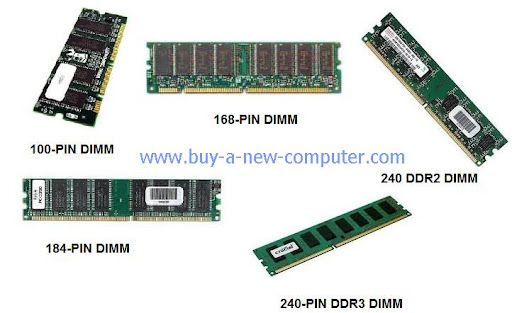
Take a look at the market today under the desktop computer memory products . You can find and buy the following types of RAM:
- SDRAM – 168 pin
- DDR SDRAM – 184 pin
- DDR2 SDRAM – 240 pin
- DDR3 SDRAM – 240 pin
History of Computer Memory Types
These are all generations of the Synchronous Dynamic Random Access Memory (SDRAM). Older SIMMs (Single In-line Memory Modules) or DIMMs (Dual in-line Memory Modules) 100-pin, may also be found for sale but they have a low performance/price ratio as they are considered obsolete and very difficult to find. SIMMs or DIMMs are just another name for the computer memory modules. A memory module can be found as DIMM module or just DIMM. All these names are for the same thing.The SDRAM is the dominant RAM type that is used up to now since 1993. This type of dynamic random access memory is used in all desktop computers. The desktop computer memory types that we are talking about are in fact variations of the SDRAM memory.
Every new variation of SDRAM offered greater performance by actually supporting a higher range of clock speeds. But there are also downsides to the higher clock speed and this is the increase of the CAS latency. CAS latency is a performance factor of the memory module. The lower the CAS latency the faster the memory is. The below table summarizes all this information.

As you see, the DDR technology doubles the bandwidth of the DIMM clock frequency. This is the effective bandwidth. Each RAM type supports a specific clock frequency range. The above values show the speed in MHz that computer memory modules support. DIMMs at a higher clock speeds, in every SDRAM generation, presented in the market at a later time.
Also the typical voltages are not standard for all the memory modules. For example some DDR2 modules need a voltage of 2.1 or 2.2 in order to work at their advertised frequency.
How to Identify Computer Memory Modules From their Description
An easy way to identify all the above computer memory types is from their name description. Every memory module in its name description has a code that looks like DDRy-xxxxor PCy-xxxx. What does these codes means?DDRy-xxxx : y=nothing in case of DDR, y=2 in case of DDR2 and y=3 in case of DDR3. Xxxx= Effective Bandwidth of the memory module.
Example: DDR2-1066 means a DDR2 memory type with an advertised bandwidth of 1066 MHz.
PCy-xxxx: y is the same with the previous code. Xxxx= 8x(Effective Bandwidth).
Example: PC-3200 is a DDR memory having an effective bandwidth of 3200/8 = 400 MHz.
This is the general rule about the PCy-xxx code but it is not always followed by manufacturers. You may find it slightly increased in some computer memory types.
So now when you shop for desktop computer memory you will be able to identify and understand all these mysterious codes in product descriptions. Besides you can save time because you don’t have to enter the product details in order to check the bandwidth of the memory modules.
How Much RAM Can My OS Handle?
What is the maximum amount of RAM the Windows operating system can handle?
That depends on two factors: the amount of
memory your computer hardware can handle, and the amount of memory your
Microsoft® Windows® operating system (OS) can handle.
First, your computer hardware (motherboard) is designed to hold a maximum amount of RAM. When you look up your computer in the Crucial Memory Advisor™ tool or scan your system with the Crucial System Scanner, you will see the system maximum listed on the page that shows the compatible upgrades for your system.
Second, the OS maximum is the maximum amount of memory that your particular version of Windows, Linux, or Mac® OS can handle.
When purchasing your memory upgrade, make sure that you do not exceed the lower of the two maximums (OS and computer maximums.) Too much RAM can lower your system's performance or cause other problems. (In most cases, the system maximum is lower than the OS maximum.)
First, your computer hardware (motherboard) is designed to hold a maximum amount of RAM. When you look up your computer in the Crucial Memory Advisor™ tool or scan your system with the Crucial System Scanner, you will see the system maximum listed on the page that shows the compatible upgrades for your system.
Second, the OS maximum is the maximum amount of memory that your particular version of Windows, Linux, or Mac® OS can handle.
When purchasing your memory upgrade, make sure that you do not exceed the lower of the two maximums (OS and computer maximums.) Too much RAM can lower your system's performance or cause other problems. (In most cases, the system maximum is lower than the OS maximum.)
Windows 7 (32 Bit)
Starter: 2GB
All other Versions: 4GB
Windows 7 (64 Bit)
Home Basic: 8GB
Home Premium: 16GB
Professional: 192GB
Enterprise: 192GB
Ultimate: 192GB
Windows Vista (32 bit)
Ultimate: 4 GB
Enterprise: 4 GB
Business: 4 GB
Home Premium: 4 GB
Home Basic: 4 GB
Starter: 1 GB
Windows XP (32 bit)
Professional: 4 GB
Home: 4 GB
Starter Edition: 512 MB
Windows Server 2003 (32 bit)
Datacenter SP2: 128 GB
Enterprise SP2: 64 GB
Standard SP1: 4 GB*
Datacenter R2: 128 GB
Enterprise R2: 64 GB
Standard R2: 4 GB*v
Web Edition: 4 GB*
Small Business Edition: 4 GB*
* Certain Microsoft server operating systems can support over 4GB of memory via Physical Address Extension (PAE). Please refer to Microsoft knowledgebase article located here for more information.
Windows Server 2008 (32 bit)
Datacenter: 64 GB
Enterprise: 64 GB
Standard: 4 GB
Web Server: 4 GB
Windows Vista (64 bit)
Ultimate: 128 GB
Enterprise: 128 GB
Business: 128 GB
Home Premium: 16 GB
Home Basic: 8 GB
Windows XP (64 bit)
Professional: 128 GB
Windows Server 2003 (64 bit)
Datacenter SP2: 2 TB
Enterprise SP2: 2 TB
Standard SP1: 32 GB
Datacenter R2: 1 TB
Enterprise R2: 1 TB
Standard R2: 32 GB
Small Business Edition: 128 GB
Windows Server 2008 (64 bit)
Datacenter: 2 TB
Enterprise: 2 TB
Standard: 32 GB
Web Server: 32 GB
Here are the OS maximums for some older versions of Microsoft Windows:
- Windows 95: 1GB
- Windows 98: 1GB
- Windows 98SE: 1GB
- Windows ME: 1.5GB
- Windows NT: 4GB
- Windows 2000 Professional: 4GB
- Windows 2000 Server: 4GB
- Windows 2000 Advanced Server: 8GB with PAE enabled
- Windows 2000 Datacenter Server: 32GB with PAE enabled
Here are the maximums for some other platforms:
- OS X (including v. 10.6 "Snow Leopard"): 64GB due to current hardware limitations (the current maximum memory capacity of Apple's highest-end system, the Mac Pro 12-Core)
- OS 9.x: 1.5GB (no single application can utilize more than 1GB)
- Red Hat Linux 2.4 kernel: 64GB
Multimedia/Networking/Crack/software Info Website
1)http://www.infiniteskills.com
2)http://www.entheosweb.com/tutorials/css/website.asp
3)http://www.go2web20.net
4)http://www.hscripts.com
5)http://www.javascriptfreecode.com/13.htm
6)http://doc.pfsense.org/index.php/Installing_pfSense
7)http://www.iceflatline.com/2010/08/install-and-configure-pfsense-in-your-home-network/
8)http://www.htmlfreecodes.com/
9)crackers
10)adobe serial
11)activation blocker
12)ebook
13) http://www.downloadbazar.com/archives/cat_tools_and_utility.php
14) http://www.dlbazar.com/
15) http://www.tutorialguide.net/design/adobe_photoshop/
16)http://www.tutorialkit.com/categories/Photoshop-Tutorials-Photoshop-CS5-Tutorials/page2.html
17) http://www.3dlessons.com/categories/3D-Tutorials-3ds-Max-Tutorials.html
18) http://www.demonoid.me/
19) http://www.web-source.net/css_tutorial/
20) http://blog.sharepointhosting.com/Downloads/SharePoint-Tutorials.aspx
21)http://msdn.microsoft.com/en-us/sharepoint/aa905692
22) http://cydia.hackulo.us/
23) http://www.9down.com/page/3/
24) http://www.serials.ws/all/?l=n&pn=2
2)http://www.entheosweb.com/tutorials/css/website.asp
3)http://www.go2web20.net
4)http://www.hscripts.com
5)http://www.javascriptfreecode.com/13.htm
6)http://doc.pfsense.org/index.php/Installing_pfSense
7)http://www.iceflatline.com/2010/08/install-and-configure-pfsense-in-your-home-network/
8)http://www.htmlfreecodes.com/
9)crackers
10)adobe serial
11)activation blocker
12)ebook
13) http://www.downloadbazar.com/archives/cat_tools_and_utility.php
14) http://www.dlbazar.com/
15) http://www.tutorialguide.net/design/adobe_photoshop/
16)http://www.tutorialkit.com/categories/Photoshop-Tutorials-Photoshop-CS5-Tutorials/page2.html
17) http://www.3dlessons.com/categories/3D-Tutorials-3ds-Max-Tutorials.html
18) http://www.demonoid.me/
19) http://www.web-source.net/css_tutorial/
20) http://blog.sharepointhosting.com/Downloads/SharePoint-Tutorials.aspx
21)http://msdn.microsoft.com/en-us/sharepoint/aa905692
22) http://cydia.hackulo.us/
23) http://www.9down.com/page/3/
24) http://www.serials.ws/all/?l=n&pn=2
Sunday, February 26, 2012
This is how to repair a laptop power connector socket jack pin.
Great care is needed when repairing laptops. You
need patience and cannot rush a repair. The first thing you need when repairing laptops are good
tools. You need a high power soldering iron for de-soldering and a lower powered
iron for soldering. Below is an image of two soldering irons. In this exercise
we will learn how to remove a power connector from a laptop an re-solder a new
one. For de-soldering a power pin you need a lot of heat , more heat than for
soldering the power socket.


This power pin has six pins to de-solder. On Toshiba laptops a lot of heat is needed to remove the pin.


The old solder needs to be fully removed. An easy way to do this is by placing the iron on one side of the motherboard and using the solder sucker on the other side. Heat up the solder, pin by pin and suck up the old solder . You will need to keep the iron on the board for about 10 seconds. Motherboards are very very strong so do not worry about frying your motherboard. You can see this is very affective from the image below.


Ok so the new pin is ready to put in place. In the image above the contacts are clean and the board is in excellent condition. Great care is taken by our engineers to look after customers laptops. We treat the motherboard like a fragile Ming vase in other words very carefully !!!.Look at the image below. The pin is now in place pushed firmly into place. Some engineers use super glue to keep it in place while they re-solder it.


The laptop power pin is now firmly in place and we can give a warranty on our repair.

.

Here we are removing a Toshiba power pin.
You will need to remove all the screws for the laptop and remove the
motherboard. If this is your first laptop you have opened just make sure you
keep all the screws in order. So keep all the base screws together. Then keep
all the back screws together, then all the screen screws, processor screws,
finally the motherboard screws. The more laptops you open the more confident you
will become. Repairs to the laptop power socket are usually the first an
engineer will attempt. Below is the Toshiba motherboard we have removed.
This power pin has six pins to de-solder. On Toshiba laptops a lot of heat is needed to remove the pin.
Look at the images below in the first image
we are removing the power pin. First heat up the pin with the iron. When the
solder starts to run place the solder sucker close to the pin and suck it up.
repeat this until you remove the pin as in the next image. The new pin is almost
ready to be fitted.
The old solder needs to be fully removed. An easy way to do this is by placing the iron on one side of the motherboard and using the solder sucker on the other side. Heat up the solder, pin by pin and suck up the old solder . You will need to keep the iron on the board for about 10 seconds. Motherboards are very very strong so do not worry about frying your motherboard. You can see this is very affective from the image below.
The motherboard contacts need to be clean.
In the next two images you can see the before and after the solder is removed
and the pin holes now are clean and ready for the new pin.
Ok so the new pin is ready to put in place. In the image above the contacts are clean and the board is in excellent condition. Great care is taken by our engineers to look after customers laptops. We treat the motherboard like a fragile Ming vase in other words very carefully !!!.Look at the image below. The pin is now in place pushed firmly into place. Some engineers use super glue to keep it in place while they re-solder it.
Put the Iron on the pin for about 10 seconds
then apply the solder to the iron while the iron is touching the pin. The
idea is that the solder will flow down the tip of the iron onto the pin. Hold it
there for another 5 seconds. A good soldered pin should resemble a mountain
shape. To much solder is no good neither is too little. Look at the pin before
you de-solder it. It will give you an idea of how much solder is needed.
At Laptop Repair UK we use super glue and
silicone to ad extra strength. Dow corning is a very good make of silicone. You
can buy these small tubes from a D.I.Y store. In our demonstration we used clear
silicone.
The laptop power pin is now firmly in place and we can give a warranty on our repair.
.
PLASMA TV REPAIR TIPS & SERVICE HINTS
- Hitachi CMP5000WXE-50 Inch PLASMA DISPLAY-Digital Noise only on Screen or Monitor will not start
- Hitachi P50TP01UA-50 Inch PLASMA TV- No Display Repair Tips
- LG 42PG20 Plasma TV-Turn-On-Start Up Sequence-web
- Panasonic 50 & 500 PX series Plasma Tv Service Hints-itd0509055be
- Panasonic 50 & 500 Series Plasma Tv Service Hint-itd0509057be
- Panasonic PDP2007-10th-Gen-Chassis GPH10DU Trobleshooting Guide
- Panasonic Plasma Tv Service Hints-itd0804015be
- Panasonic TH-103PF9EKALLSH Plasma Tv Service Hint-Exchange Panel-ITD0701001BE
- Panasonic TH-37PW5ALLSH Plasma TV Service Hint-20040624133105
- Panasonic TH-42PX60 & TH42PX600 Shuts down with power LED 10 blinks.-tt-08-15
- Panasonic TH-42PX60 Picture disappears after few minutes but sound is OK-tt-08-14
- Panasonic TH-42PX60 relay clicks then TV shuts down with power LED 10 blinks-tt-08-32
- Panasonic TH-42PX600 & 50PX600 Speaker box is making direct contact with cabinet parts tb-06-08
- Panasonic TH-42PX600 Unit shuts down with power LED 10 blinks-tt-08-22
- Panasonic TH-58PZ800U-Once AC power cord is plugged in, unit will turn on by itself-tt-08-41
- Toshiba 42HP83 Plasma TV Power Supply and Shutdown Guide
Electronics/Computer Info Website
36) DIY-COMPUTER-REPAIR CAN HELP
37)Service Manual
37)MSI MAINBOARD USER MANUAL
38)TROUBLESHOOTING GUIDE(PDF FORMAT)
39)SUPPORT COM(PERSONAL TECHNOLOGY EXPERTS)
40) http://jesusnjim.com/pc-repair/computer-parts-and-how-i-find-them.html
41)NETWORKING TUTORIALS
42)PC TECH NOTES
43) http://www.intel-drivers.net/
44) http://www.professormesser.com/free-a-plus-training/220-701/operating-systems/
45) http://www.ntfs.com/iso-burning.htm
46) http://www.ultimatebootcd.com/download.html
47) http://ntdetect.com
48)Computer Hardware technicians Favorite Tools and Utilities
49) http://cbermejo.webs.com/apps/blog/categories/show/981335-rip
50)GNS3
51)Computer Training Seminar
52)google map
53) electronicsforum
54) training-classes
55) http://www.mainboard.cz/driver/mbdriver.htm
56) electronicslab forum
57) http://pcsupport.about.com
58) http://www.chipdip.ru/en/video.aspx
59) http://www.eevblog.com/episodes/
60) http://hackedgadgets.com/
61) http://www.laptopscreen.com/
62) http://laptoprepairguide.us/
63) http://www.free-online-training-courses.com
64) http://www.rebootit.biz/
65) http://www.tv.quuq.org/
66 http://answersthatwork.com/
67) http://ecelab.com/index.html
68) http://infoteknotainment.com/category/computer-and-networking
69)Links to other Electronics Sites
37)Service Manual
37)MSI MAINBOARD USER MANUAL
38)TROUBLESHOOTING GUIDE(PDF FORMAT)
39)SUPPORT COM(PERSONAL TECHNOLOGY EXPERTS)
40) http://jesusnjim.com/pc-repair/computer-parts-and-how-i-find-them.html
41)NETWORKING TUTORIALS
42)PC TECH NOTES
43) http://www.intel-drivers.net/
44) http://www.professormesser.com/free-a-plus-training/220-701/operating-systems/
45) http://www.ntfs.com/iso-burning.htm
46) http://www.ultimatebootcd.com/download.html
47) http://ntdetect.com
48)Computer Hardware technicians Favorite Tools and Utilities
49) http://cbermejo.webs.com/apps/blog/categories/show/981335-rip
50)GNS3
51)Computer Training Seminar
52)google map
53) electronicsforum
54) training-classes
55) http://www.mainboard.cz/driver/mbdriver.htm
56) electronicslab forum
57) http://pcsupport.about.com
58) http://www.chipdip.ru/en/video.aspx
59) http://www.eevblog.com/episodes/
60) http://hackedgadgets.com/
61) http://www.laptopscreen.com/
62) http://laptoprepairguide.us/
63) http://www.free-online-training-courses.com
64) http://www.rebootit.biz/
65) http://www.tv.quuq.org/
66 http://answersthatwork.com/
67) http://ecelab.com/index.html
68) http://infoteknotainment.com/category/computer-and-networking
69)Links to other Electronics Sites
Troubleshooting Tips for a New Motherboard
More than 70% of all computer
problems are related to cabling and connections. Ensure all cables are
connected and connected firmly. IDE and floppy ribbon cables and power
cables can often go loose. Ensure microprocessor, memory modules, and
adapters such as video card are inserted correctly and didn't "pop-up"
due to vibration.
System has no power at all. Power light does not illuminate, fan inside the power supply does not turn on, and indicator light on keyboard does not turn on.
System inoperative. Keyboard lights are on, power indicator lights are lit, and hard drive is spinning.
System does not boot from hard disk drive, can be booted from floppy disk drive.
System only boots from Floppy Disk. Hard Disk can be read and applications can be used, but booting from Hard Disk is impossible.
Error message reading "SECTOR NOT FOUND" or other error messages indication certain data is not allowed to be retrieved.
Disk formatted on IBM PS/2 will not operate with this system.
After install an expansion card (network card, tape drive card, etc.) the system no longer works properly.
Screen message says "Invalid Configuration" or "CMOS Failure."
Screen is blank.
System does not boot from hard disk drive, can be booted from floppy disk drive.
Problem
Screen goes blank periodically.
Keyboard failure.
No color on screen.
Floppy drive lights stays on.
Error reading drive A:
C: drive failure.
Cannot boot system after installing second hard drive.
Missing operating system on hard drive.
Certain keys do not function.
Keyboard is locked, no keys function.
System has no power at all. Power light does not illuminate, fan inside the power supply does not turn on, and indicator light on keyboard does not turn on.
| PROBABLE CAUSE | DIAGNOSIS | SOLUTION |
| Power cable is unplugged. | Visually inspect power cable. | Make sure power cable is securely plugged in. |
| Defective power cable. | Visual inspection, try another cable. | Replace cable. |
| Power supply failure. | Power cable and wall socket are OK, but system is still dead. | Contact technical support |
| Faulty wall outlet;circuit breaker or fuse blown. | Plug device into socket know to work and test. | Use different socket, repair outlet, reset circuit breaker or replace fuse. |
System inoperative. Keyboard lights are on, power indicator lights are lit, and hard drive is spinning.
| PROBABLE CAUSE | DIAGNOSIS | SOLUTION |
| Expansion card is partially dislodged from expansion slot on the motherboard. | Turn off computer. Take cover off system unit. Check all expansion cards to ensure they are securely seated in slots. |
Using even pressure on both ends of the expansion card, press down firmly on expansion card. |
| Defective floppy disk drive or tape drive. | Turn system off. Disconnect the cables from one of the floppy drives. Turn on the system, check to see if the keyboard operates normally. Repeat until you have located defective unit. |
Contact Technical Support. |
| Defective expansion card. | Turn computer off. Remove an expansion card. |
Make sure expansion card is secure in expansion socket. |
System does not boot from hard disk drive, can be booted from floppy disk drive.
| PROBABLE CAUSE | DIAGNOSIS | SOLUTION |
| Connector between hard drive and system board unplugged. | When attempting to run the FDISK utility described in the HARD DISK section of the manual you get a message, INVALID DRIVE SPECIFICATION. | Check cable running form disk to disk controller on the board. Make sure both ends are securely plugged in; check the drive type in the Standard CMOS Setup (in your motherboard manual). |
| Damaged Hard Disk or Disk Controller. | Format hard disk; if unable to do so, the hard disk may be defective. | Contact Technical Support. |
| Hard Disk directory or FAT is scrambled. | Run the FDISK program, format the hard drive(See HARD DRIVE section of manual). Copy your backup data back onto hard drive. | Backing up the hard drive is extremely important. All Hard Disks are capable of breaking down at any time. |
System only boots from Floppy Disk. Hard Disk can be read and applications can be used, but booting from Hard Disk is impossible.
| PROBABLE CAUSE | DIAGNOSIS | SOLUTION |
| Hard Disk boot program has been destroyed. | A number of causes could be behind this. | Back up data and applications files. Reformat the Hard Drive as described in the Hard Drive section of the manual. Re-install applications and data using backup disks. |
Error message reading "SECTOR NOT FOUND" or other error messages indication certain data is not allowed to be retrieved.
| PROBABLE CAUSE | DIAGNOSIS | SOLUTION |
| A number of causes could be behind this. | Use a file by file backup instead of an image backup to backup the Hard Disk. | Back up any salvageable data. Then do a low level format, partition, and high level format of the hard drive( see Hard Disk section of your manual for instructions). Re-install all saved data when completed. |
Disk formatted on IBM PS/2 will not operate with this system.
| PROBABLE CAUSE | DIAGNOSIS | SOLUTION |
| The IBM PS/2 uses a different format than other computers. | IBM PS/2 disk format will not work in an AT type computer. | Format disk in the AT type computer insert disk into the IBM PS/2 and copy the files you wish. |
After install an expansion card (network card, tape drive card, etc.) the system no longer works properly.
| PROBABLE CAUSE | DIAGNOSIS | SOLUTION |
| No power to monitor. | All or part of the system may be inoperable. The new card may work but a mouse or COM port may not work. | Change the interrupt or RAM address on the new expansion card. See the documentation that came with the new card in order to change pin settings. many expansion devices come with proprietary software that will assist you in doing this. |
Screen message says "Invalid Configuration" or "CMOS Failure."
| PROBABLE CAUSE | DIAGNOSIS | SOLUTION |
| Incorrect information entered into the configuration (setup) program. | Check the configuration program. Replace any incorrect information. | Review system's equipment. Make sure correct information is in setup. |
Screen is blank.
| PROBABLE CAUSE | DIAGNOSIS | SOLUTION |
| No power to monitor. | Power connectors may be loose or not plugged in. | Check the power connectors to monitor and to system. Make sure monitor is connected to display card, change I/O address on network card if applicable. |
| Monitor not connected to computer. | See instructions above. | |
| Network card I/O address conflict. | See instructions above. |
System does not boot from hard disk drive, can be booted from floppy disk drive.
| PROBABLE CAUSE | DIAGNOSIS | SOLUTION |
| Connector between hard drive and system board unplugged. | When attempting to run the FDISK utility described in the HARD DISK section of the manual you get a message, INVALID DRIVE SPECIFICATION. | Check cable running form disk to disk controller on the board. Make sure both ends are securely plugged in; check the drive type in the Standard CMOS Setup (in your |
Problem
| PROBABLE CAUSE | DIAGNOSIS | SOLUTION |
| Memory problem, display card jumpers not set correctly. | Reboot computer. Re-install memory, make sure that all memory modules are installed in correct sockets. Check jumper and switch settings on display card. See display card section for information of settings. | |
| Computer virus. | Use anti-virus programs (McAfee/PC-cillin, E-port, etc) to detect and clean viruses. |
Screen goes blank periodically.
| PROBABLE CAUSE | DIAGNOSIS | SOLUTION |
| Screen saver is enabled. | Disable screen saver. |
Keyboard failure.
| PROBABLE CAUSE | DIAGNOSIS | SOLUTION |
| Keyboard is disconnected. | Reconnect keyboard. Check keys again, if no improvement, replace keyboard. |
No color on screen.
| PROBABLE CAUSE | DIAGNOSIS | SOLUTION |
| Faulty Monitor. | If possible, connect monitor to another system. If no color, replace monitor. | |
| CMOS incorrectly set up. | Call technical support. |
Floppy drive lights stays on.
| PROBABLE CAUSE | DIAGNOSIS | SOLUTION |
| Floppy Drive cable not connected correctly. | Reconnect floppy cable making sure PIN1 on the Floppy Drive corresponds with PIN1 on floppy cable connector. |
Error reading drive A:
| PROBABLE CAUSE | DIAGNOSIS | SOLUTION |
| Bad floppy disk. | Try new floppy disk. | |
| Floppy disk not formatted | Format floppy disk(type ENTER) |
C: drive failure.
| PROBABLE CAUSE | DIAGNOSIS | SOLUTION |
| SETUP program does not have correct information. | Boot from drive A: using DOS system disk. Input correct information to SETUP program. | |
| Hard Drive cable not connected properly. | Check Hard drive cable. |
Cannot boot system after installing second hard drive.
| PROBABLE CAUSE | DIAGNOSIS | SOLUTION |
| Master/Slave jumpers not set correctly. | Set master /Slave jumpers correctly. | |
| Hard Drives not compatible / different manufacturers. | Run SETUP program and select correct drive types. Call drive manufactures for compatibility with other drives. |
Missing operating system on hard drive.
| PROBABLE CAUSE | DIAGNOSIS | SOLUTION |
| CMOS setup has been changed. | Run setup and select correct drive type. |
Certain keys do not function.
| PROBABLE CAUSE | DIAGNOSIS | SOLUTION |
| Keys jammed or defective. | Replace keyboard. |
Keyboard is locked, no keys function.
| PROBABLE CAUSE | DIAGNOSIS | SOLUTION |
| Keyboard is locked. | Unlock keyboard |
Saturday, February 25, 2012
IT Training
Subscribe to:
Comments (Atom)